
Installing Cardbox on CrossOver Mac
We assume that you have already installed CrossOver Mac - either a time-limited trial copy or a fully licensed copy.
Download and save the Cardbox installer
Download the necessary installer and save it in a location that you can find easily: for instance, your desktop. You will be able to delete it once the installation has finished.
About bottles
CrossOver can create separate Windows environments, containing different software and behaving like different versions of Windows. It calls these environments "bottles" (because CrossOver is based on Wine and wine comes in bottles).
If you are already using CrossOver to host a heavyweight Microsoft program such as Microsoft Office then the same bottle will be suitable for Cardbox; if not, you should create a new bottle specifically for Cardbox.
The installation process
Open CrossOver Mac, and choose Configure > Install Software.
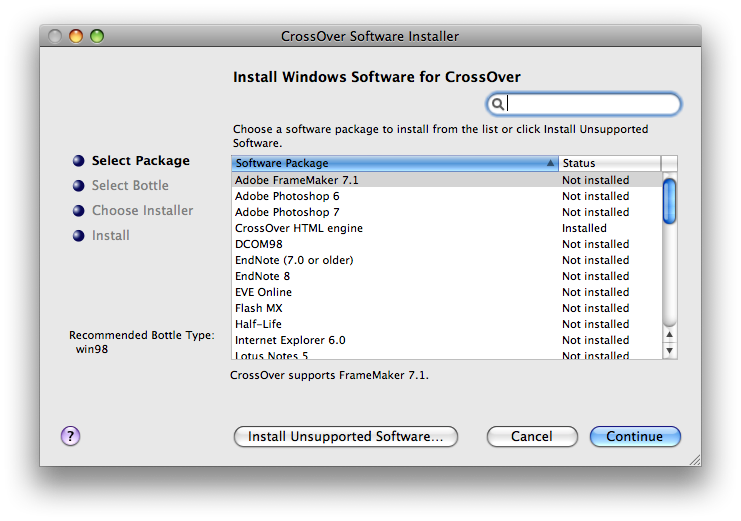
If you are creating a new bottle then select Internet Explorer 6.0 and press the "Continue" button: follow the on-screen instructions and install Internet Explorer into a newly-created Windows 98 bottle. (This is not absolutely essential but it will make Cardbox's help pages appear correctly; and it is vital if you intend to play macros from within Cardbox).
Whether or not you have created a new bottle, now press the "Install Unsupported Software" button. You get a warning screen:
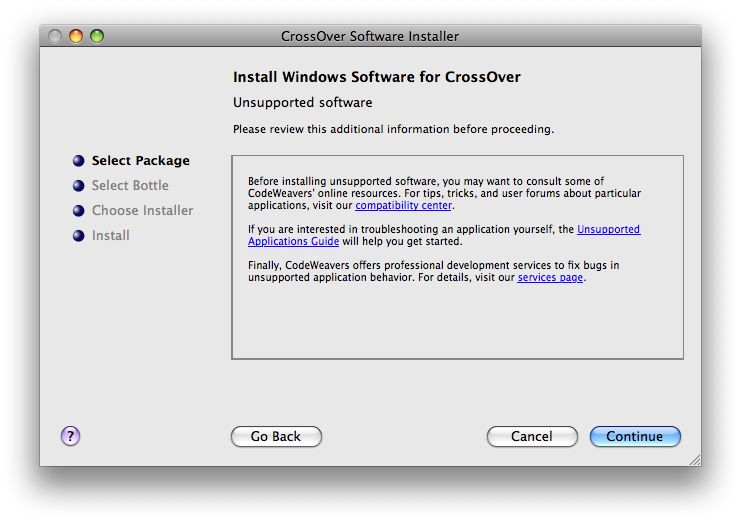
Press the "Continue" button:
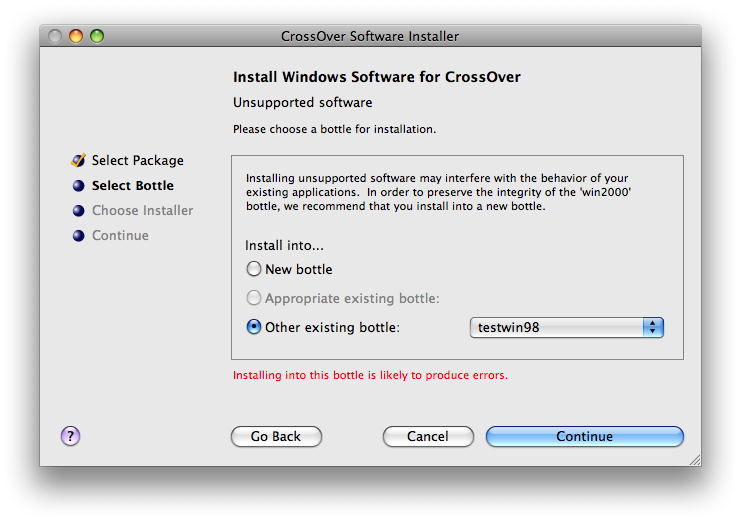
Select "Other existing bottle". From the list to the right of that button, select the bottle you have chosen for your Cardbox installation.
Don't worry about the warning message in red. This is displayed because some software installation procedures install or replace Windows system files, sometimes replacing a working version with one that will not work with software that is already in the bottle. The Cardbox installer does not install any system files at all, and cannot harm the contents of an existing bottle.
Press the "Continue" button:
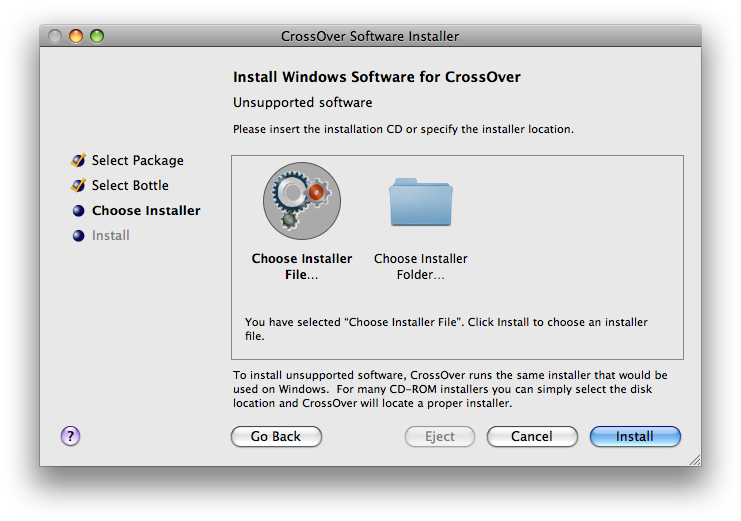
Ensure that the "Choose Installer File..." option is selected (displayed in bold), and then press the "Install" button. A Finder window will open. Navigate to your desktop, click on your chosen installer, and press the button marked "Use this installer".
The next window will look something like this:
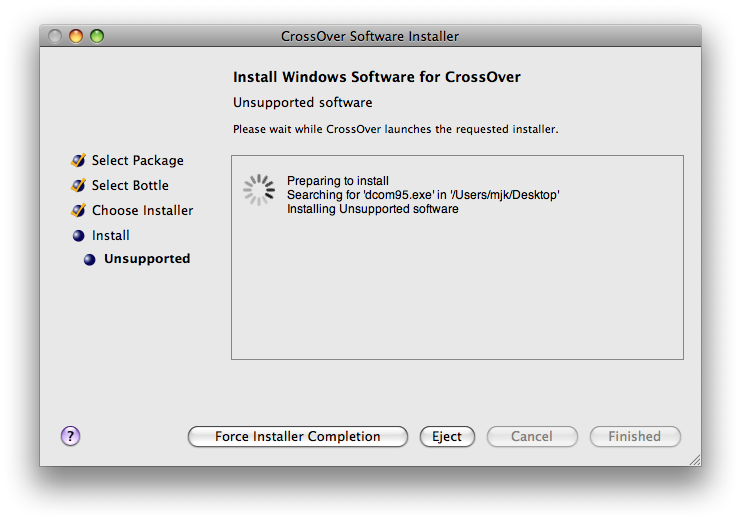
After a few moments you will see a more Windows-like window appear, probably in the corner of the screen:
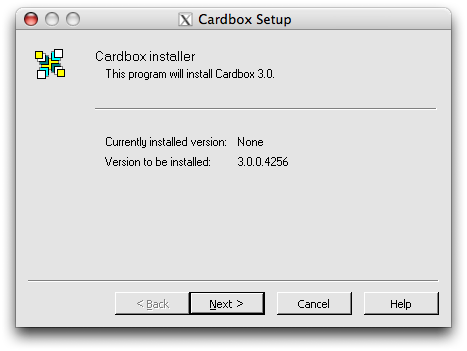
This is the Cardbox installer. Follow its instructions through to the end.
After the Cardbox installer has completed, CrossOver will do its necessary housekeeping. Finally, the CrossOver window will show a "Finished" button. Click on this, and your installation will be complete.
Perform any other installations you need (for instance, the sample databases), and then delete the installers' .exe files from your desktop.