
Importing PDF files as images
If you install the appropriate additional software, Cardbox is able to import PDF (eg. Adobe Acrobat) files into an image field. The effect is exactly the same as printing out the PDF file and then scanning it into Cardbox.
Software required
The software used to perform the conversion of PDF files into a format that Cardbox can read is called Ghostscript. Ghostscript is an open-source product that is distributed free of charge. At the time of writing this document, the main Ghostscript site was at http://www.cs.wisc.edu/~ghost/. If this address does not work then ask Google to search for "Ghostscript".
There are two main distributions of Ghostscript, AFPL and GNU, with different licences. We conducted our tests with AFPL, which is normally slightly more recent software. The AFPL Ghostscript licence allows you to install and use AFPL Ghostscript for personal use, or for internal use within an organisation: the full licence can be read on the Ghostscript sites.
Ghostscript support
Ghostscript is unsupported. If you run into problems then you may find user forums or newsgroups on the Web. We can't give you support on it ourselves.
Downloading and installing Ghostscript
Here is what we did when installing Ghostscript to work with Cardbox. As before, the links were working at the time we wrote this page: if a new version of Ghostscript has been released since then, the links you need to use will be different.
From the main Ghostscript site, we visited the AFPL Ghostscript page and chose the latest release (AFPL Ghostscript 8.51, released in April 2005). This took us to "Obtaining AFPL Ghostscript 8.51".
In the Obtaining AFPL Ghostscript 8.51 page we looked under "Windows 95, 98, ME, NT, 2000 or XP" and selected the link to gs851w32.exe, "AFPL Ghostscript 8.51 for Win32", which was a 10-megabyte download (you may find that you need to disable your Windows firewall temporarily while downloading, if it has not been set up to permit downloads using the FTP protocol).
Having downloaded gs851w32.exe, we double-clicked on it to open it.
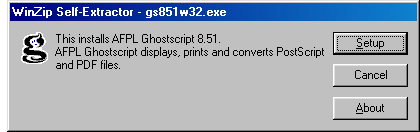
We clicked on "Setup" and received the following screen:
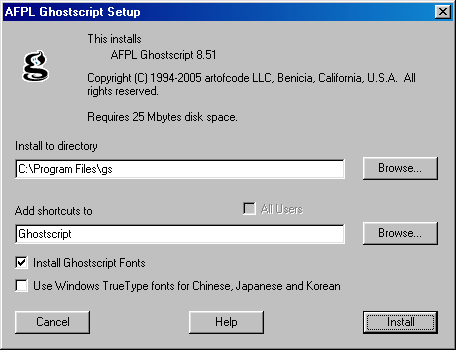
We left the options unchanged and clicked on "Install".
Telling Cardbox about Ghostscript
We used Windows Explorer to find the location of the file called gsdll32.dll. This turned out to be C:\Program Files\gs\gs8.51\bin\gsdll32.dll.
We edited the file called cardbox3.ini in our Windows directory. We added the following lines to the end of that file:
[PDF]
Ghostscript=C:\Program Files\gs\gs8.51\bin\gsdll32.dll
(If you do not have a cardbox3.ini file in your Windows directory, create it using Notepad and insert the two lines we have just shown).
If your gsdll32.dll file is in a different location to the one shown above, change the filename in cardbox3.ini so that it indicates the actual location.
Importing a PDF file
If you have done all this successfully then Cardbox will list PDF files along with other image file types whenever you ask it to import an image file. Importing PDF files will be slightly slower than importing other kinds of image files.
Troubleshooting
If PDF files aren't listed then this means that you haven't edited cardbox3.ini, or that gsdll32.dll doesn't exist in the location that you have put into cardbox3.ini. View the log file (as described here), and you will see messages with "PDF" in them. For example:
- PDF: No Ghostscript file has been specified
- You have not edited cardbox3.ini, or you have put it in the wrong place (it must be in the Windows directory), or you have mistyped the [PDF] or Ghostscript= markers.
- PDF ERROR: The specified Ghostscript file xxxxxx does not exist.
- There is no file in the location that you have specified after the Ghostscript= marker. Make sure that you have typed the filename correctly and that a file really does exist with that name and in that location.
A note on quality
When you import a PDF file as an image into Cardbox the resultant image quality will not be as good as the original PDF file: it will be roughly equivalent to printing the PDF file and then scanning the printout at 200 dots per inch. If you want to be able to have higher-quality printouts in the future then you will need to keep the original PDF file even after it has been imported into Cardbox.